 |

Overview
A brief introduction explaining the purpose of this guide.
- Purpose: How to create a CSV export of a process using an export template in RDrive
- Who It’s For: General users
Prerequisites: Able to read the item you are reporting on
Data export is a tool for general users to extract data to a CSV file for any purpose.
Please contact the company admin to request a template if needed as it is fully customised.
Let's go through how to download the CSV file with the data export template.
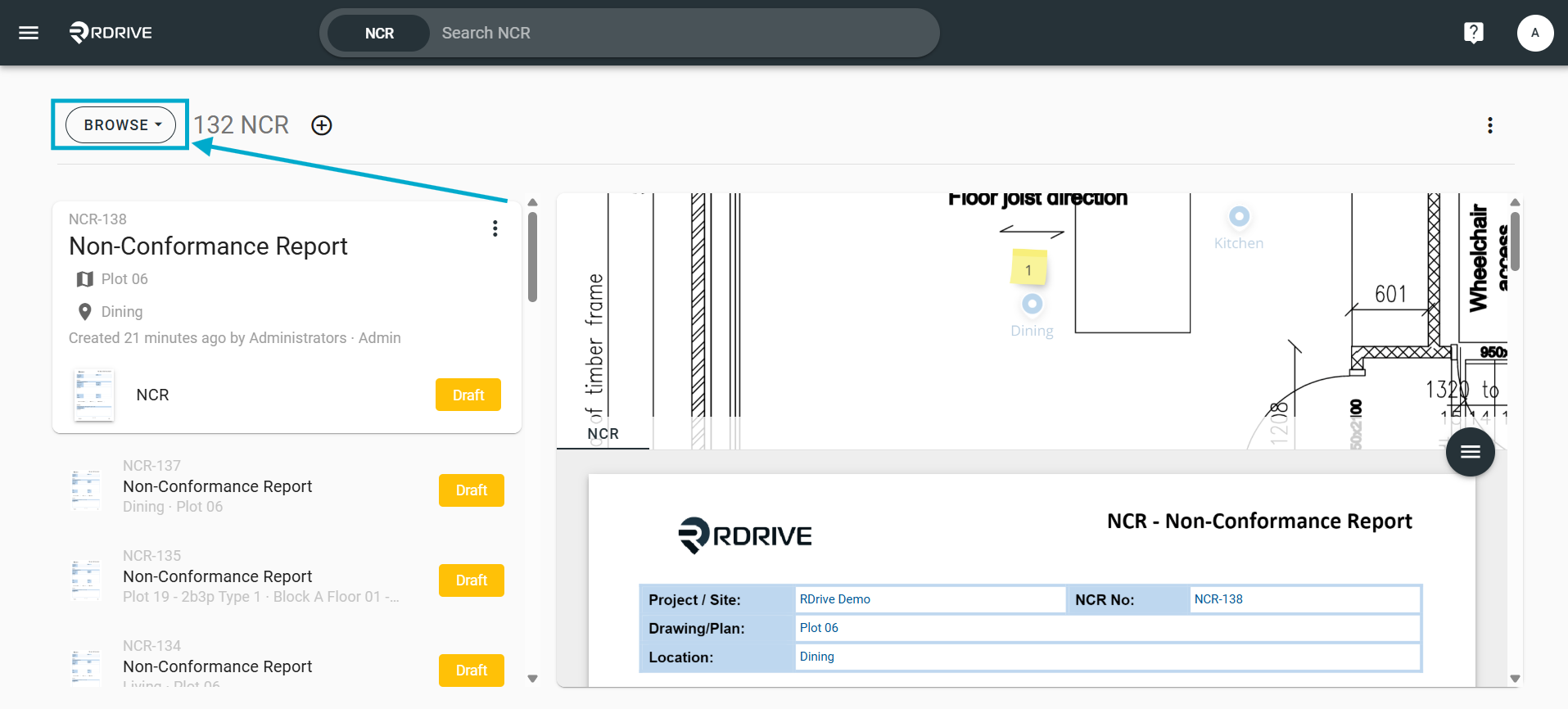
Please ensure that you are in "SELECT" mode from the drop-down options on the upper-left hand side of your screen as circled below.
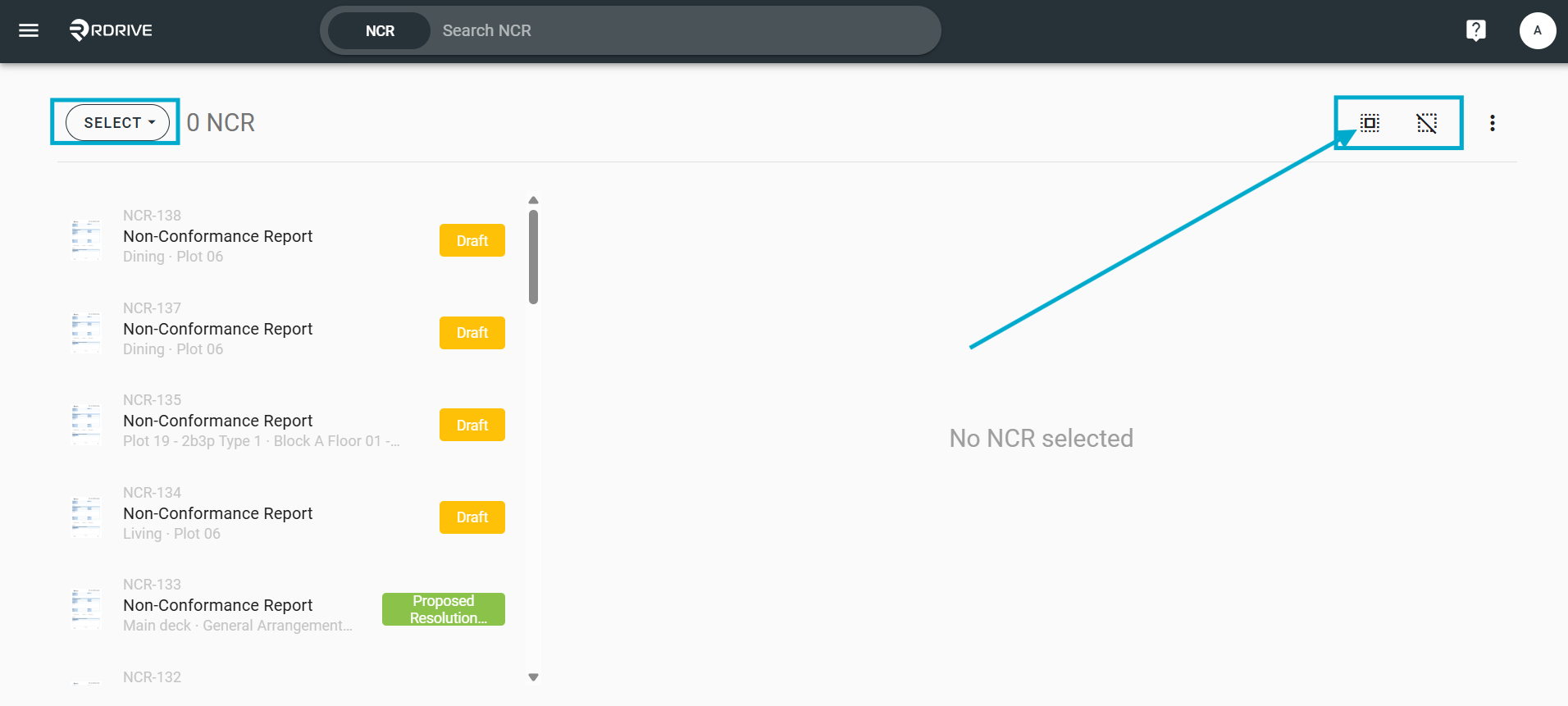
You will see there are two icons at the top right corner for "Select all" or "Deselect all".

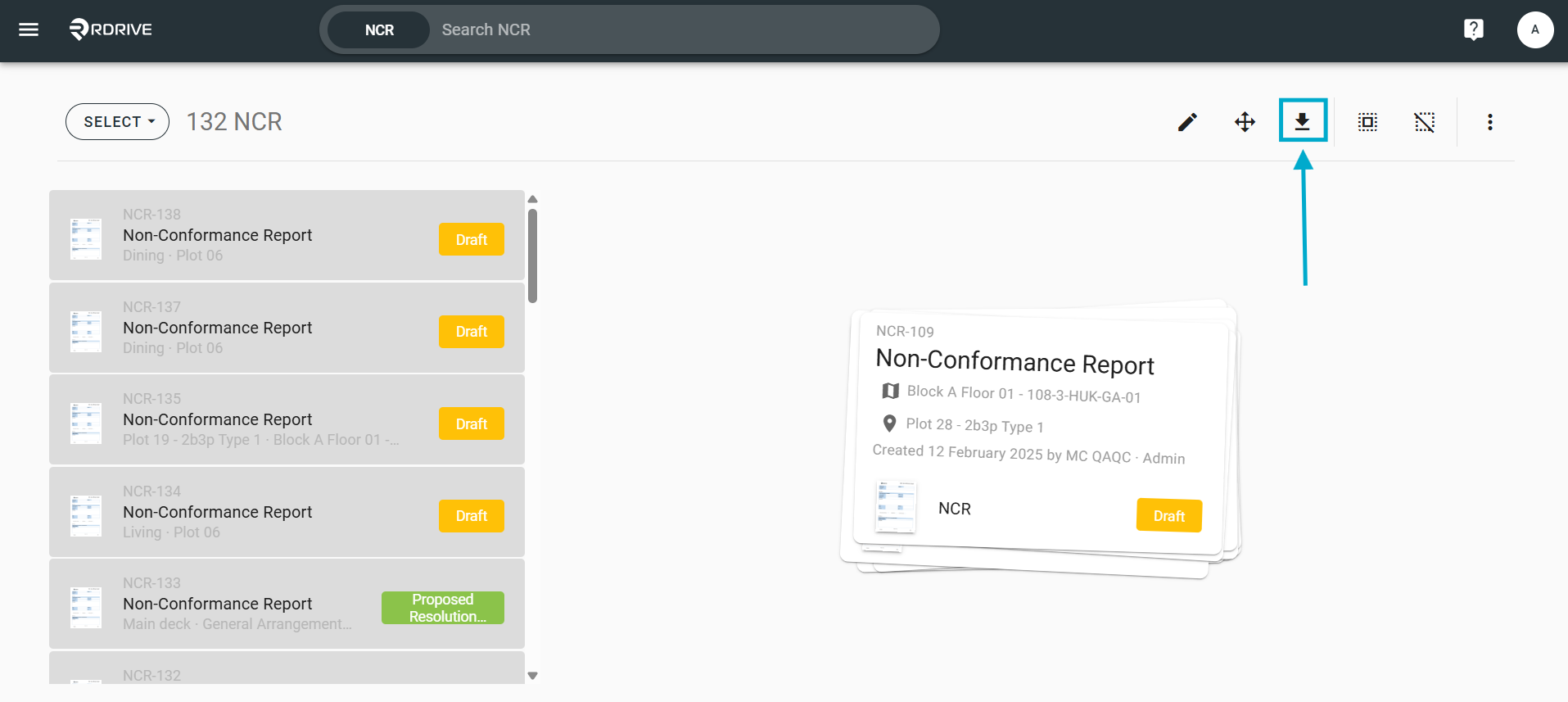
Click the "Select all" icon and then click the Download icon circled below.
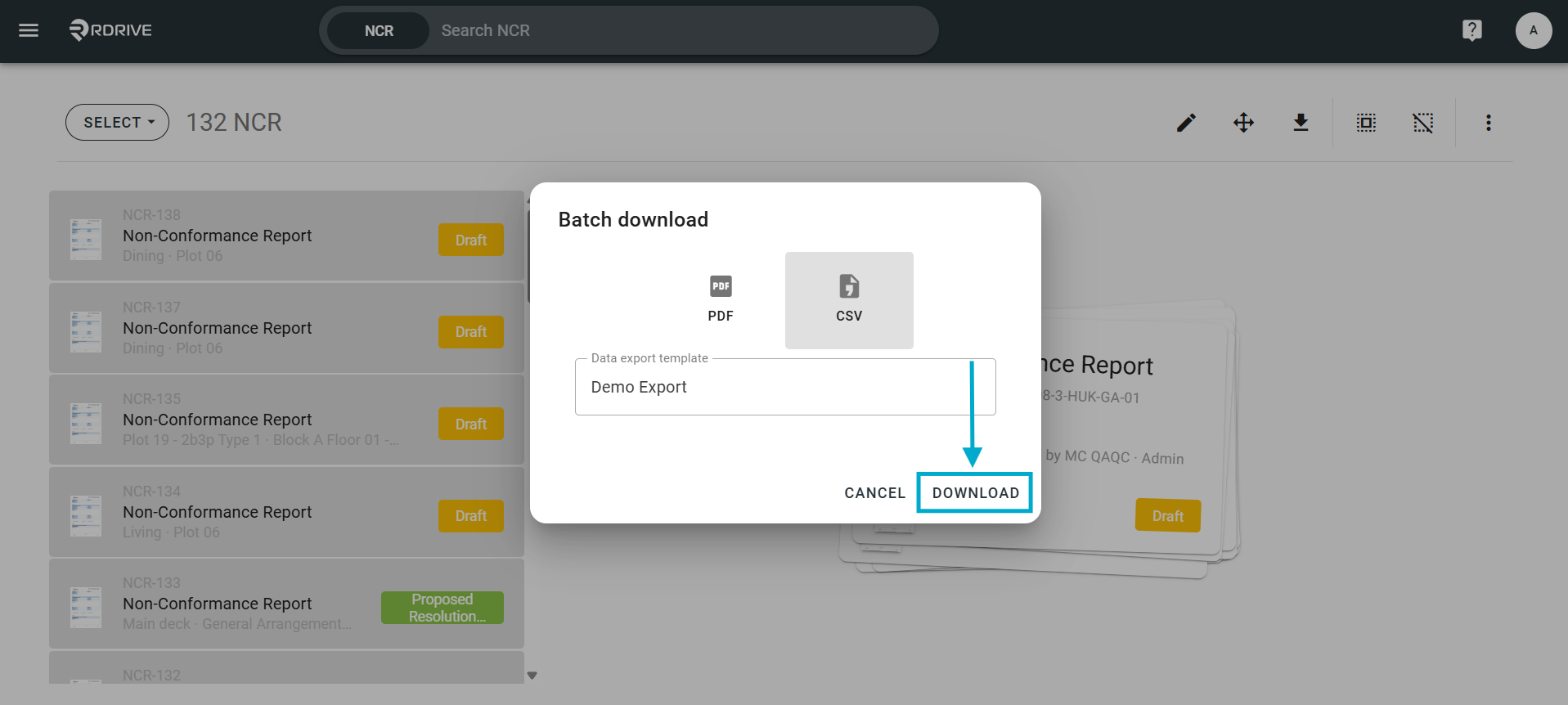
Click CSV on the batch download Menu options to choose a data export template.
If no template is available, please contact your Company/Project Admin Team to set this up.
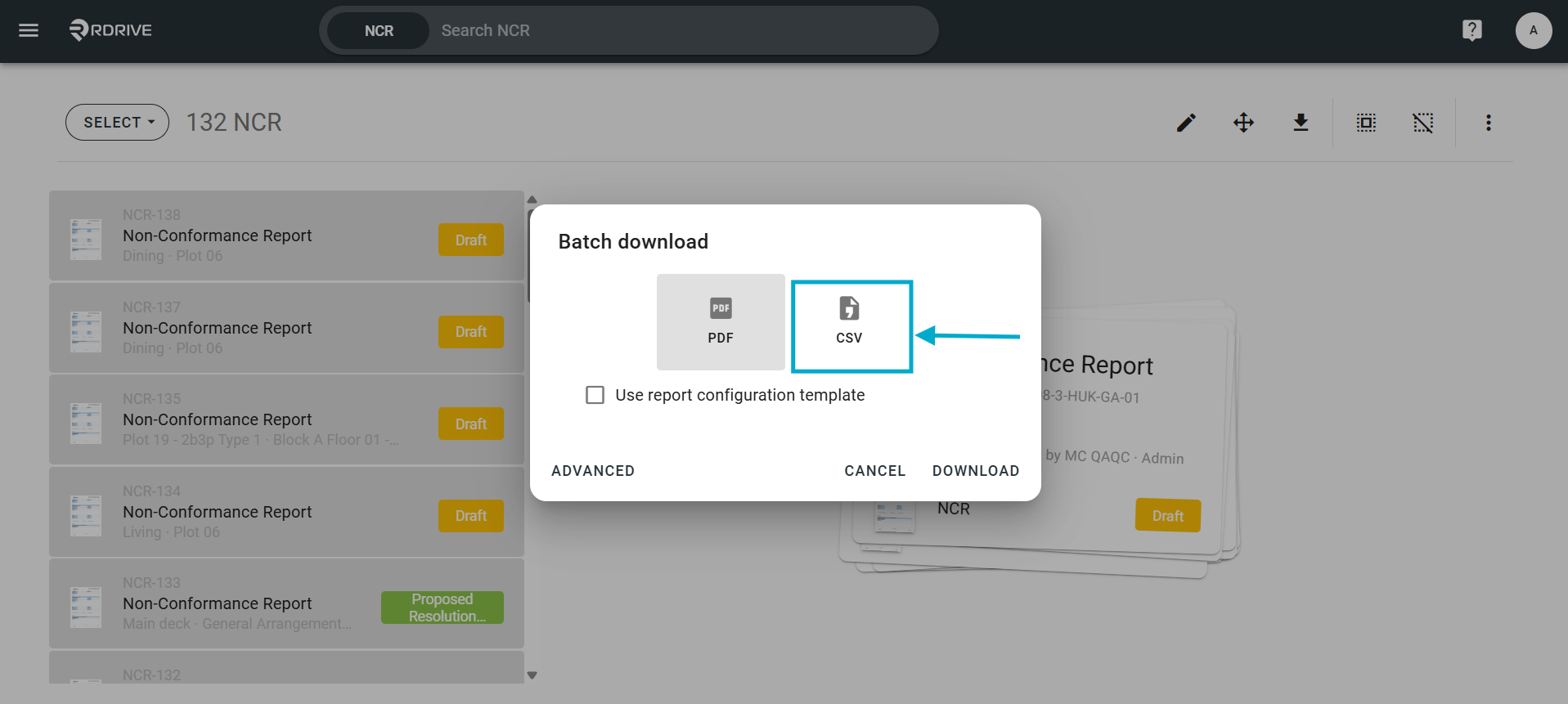
Select your export template preference from the list and press "DOWNLOAD" to confirm.
Below is a sample of the downloaded CSV for your reference depending on your export configuration.

Was this article helpful?
That’s Great!
Thank you for your feedback
Sorry! We couldn't be helpful
Thank you for your feedback
Feedback sent
We appreciate your effort and will try to fix the article