 |

Overview
How to move a pin on the app in RDrive.
- Purpose: How to move a pin using the app.
- Who It’s For: General users
Prerequisites: Have raised the item and not yet synced the device
Please note: You can only move a Pin before you sync your device.
If you need to move a pin to another spot, here is what you can do:
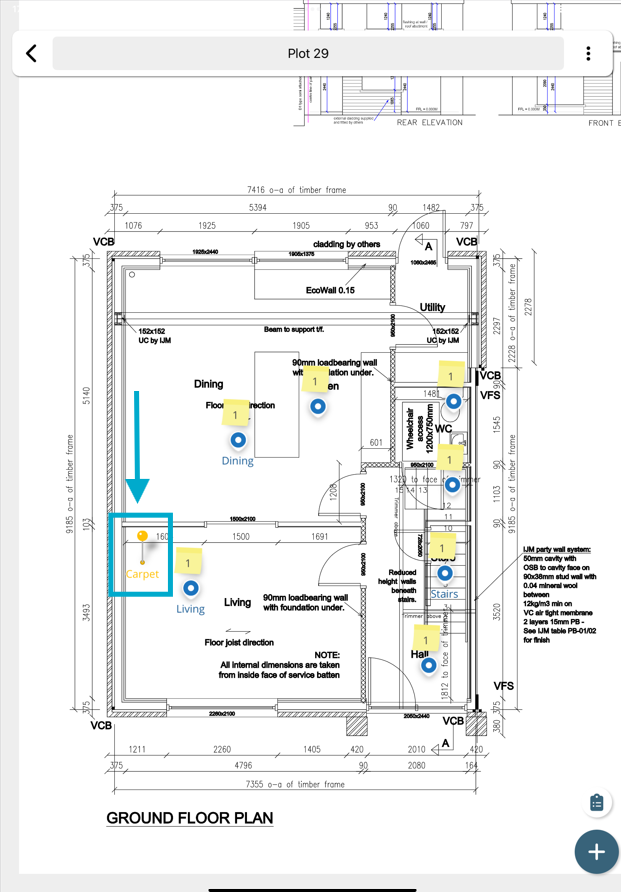
Hold and press on an issue pin from the plan viewer to open a menu.
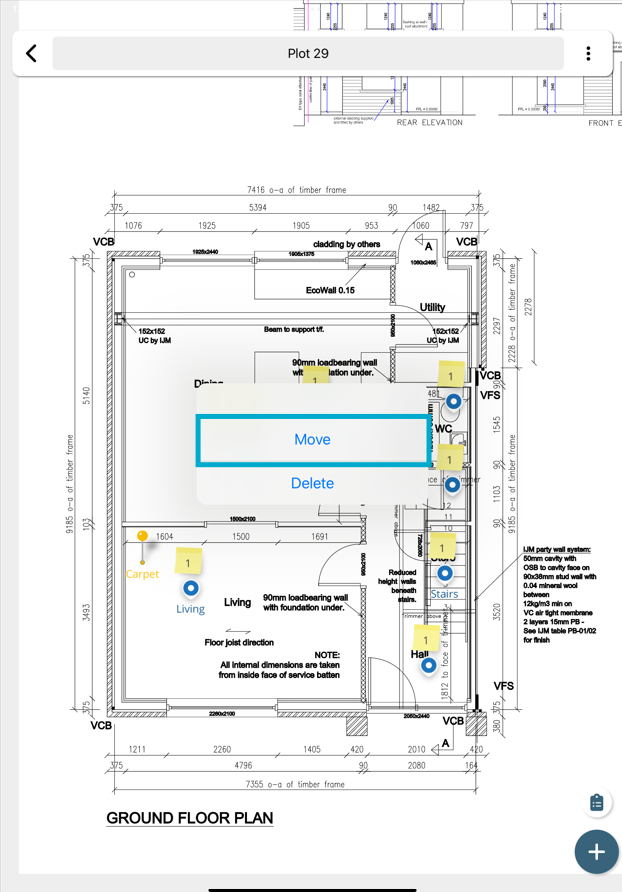
This will then bring up the menu for this item, select move.
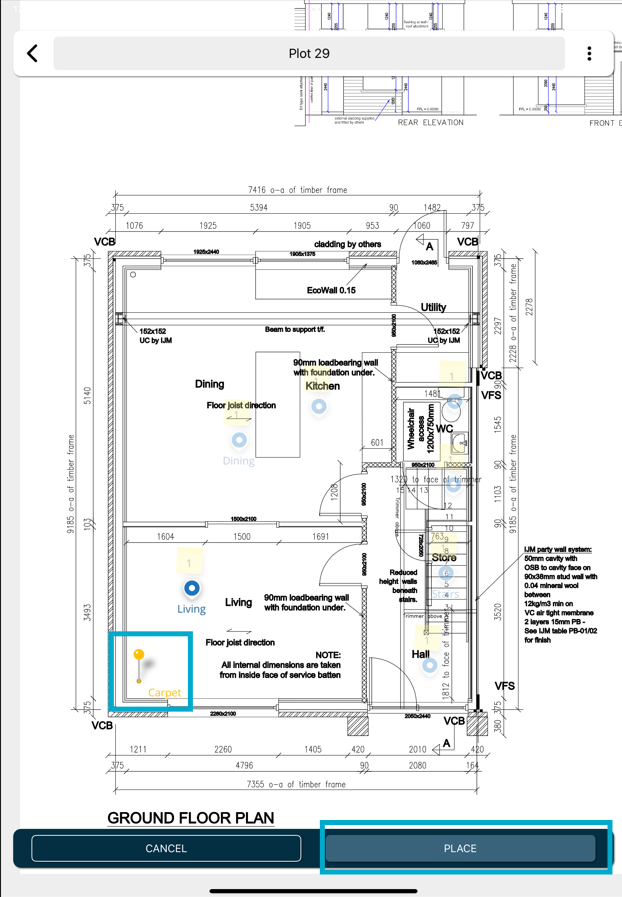
Drag the Pin to change its position as required, then select PLACE to save.
FAQs & Troubleshooting
Q: Can I move an issue or record pin after it has been created?
A: Yes. If you have the appropriate permissions, you can reposition an issue or record pin to a new location on the drawing, plan, or map.
Q: Why would I need to move a pin?
A: Pins may need to be moved if they were placed in the wrong location, if the issue relates to a different area than originally recorded, or if the drawing has been updated.
Q: Why can't I move a pin?
A: You may not have the required permissions, or the item may be in a status that prevents location changes. Contact your project administrator if you require additional access.
Was this article helpful?
That’s Great!
Thank you for your feedback
Sorry! We couldn't be helpful
Thank you for your feedback
Feedback sent
We appreciate your effort and will try to fix the article