 |
Overview
Explaining what the pins are within the RDrive Legend
- Purpose: How to navigate to the RDrive Legend and pin explanations
- Who It’s For: General users
Prerequisites: RDrive Access
RDrive can be setup and highly customized within each company. In most cases, custom issues are typically designed for defects, safety issues, environmental issues, or photo diaries.
For each of these categories, it is possible they have their own icon to represent and differentiate themselves on the plan viewer.
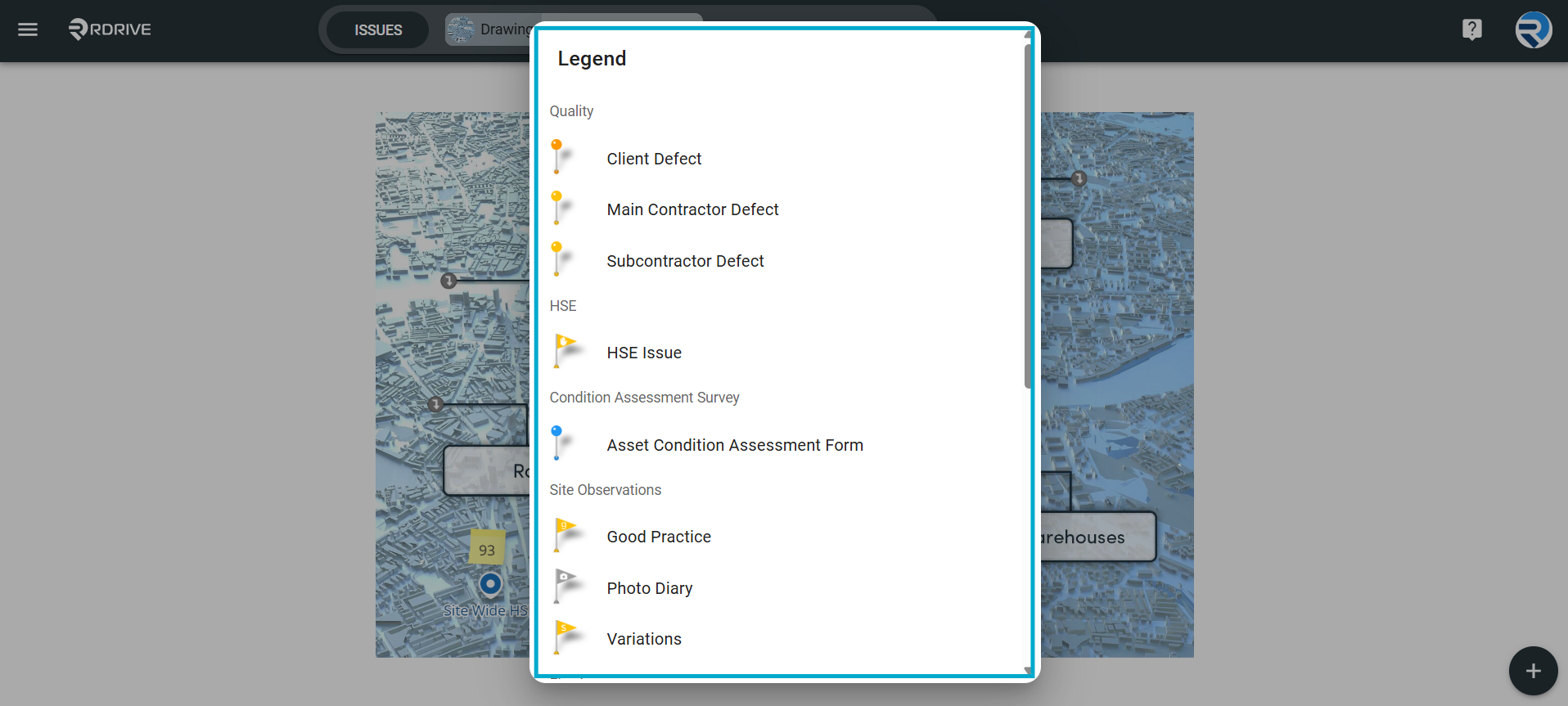
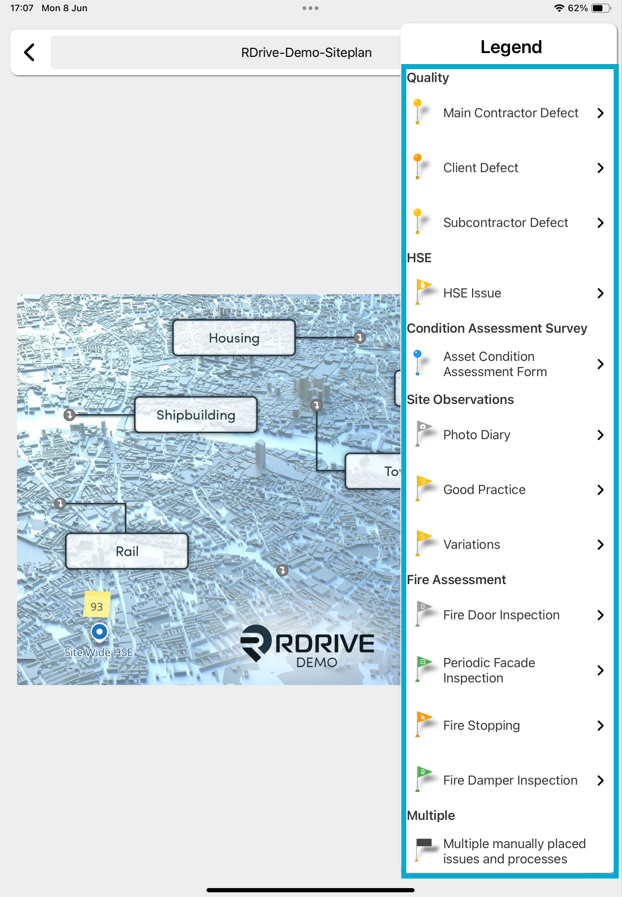
Please check out the legend to learn what each icon represents.
On the Website
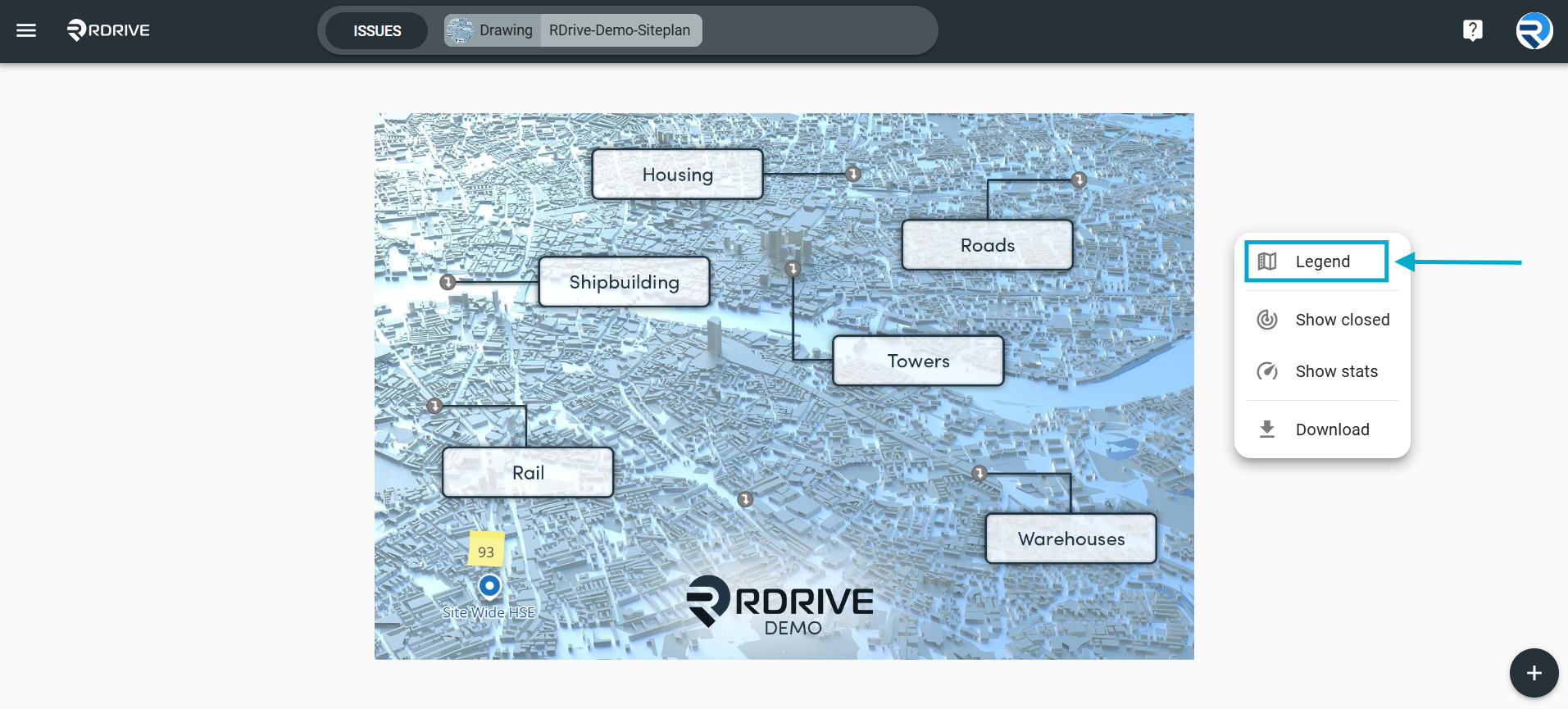
Right-click on the plan viewer, and select Legend.
From the APP
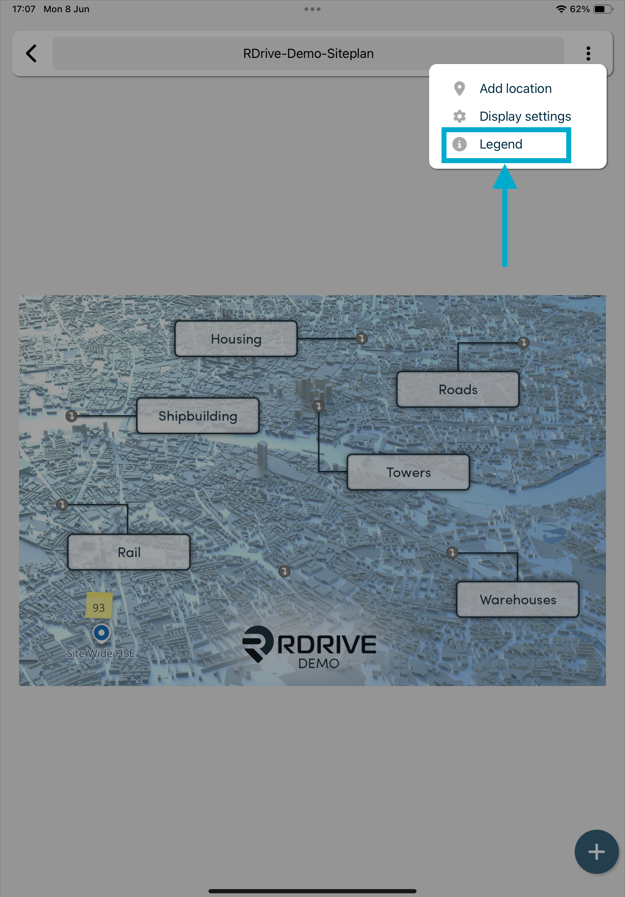
From the application plan viewer, click the 3 dot menu in the top right.
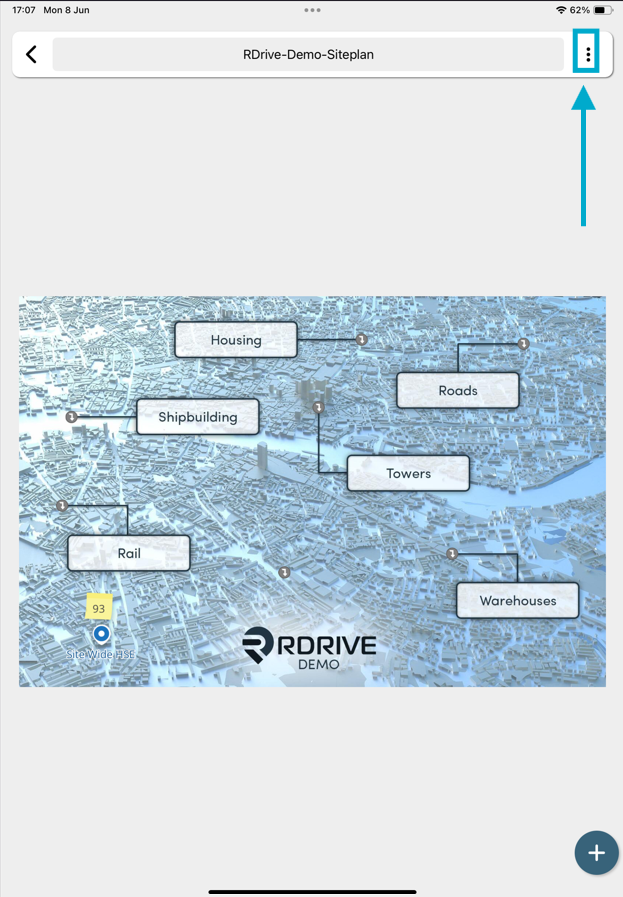
Select "Legend" from the menu.
This will then show a detailed breakdown on what the icons represent in RDrive.
FAQs & Troubleshooting
Q: What do the different pin shapes on the map or drawing represent?
A: Different pin shapes are used to identify different item types within the project, such as issues, processes, checklists, defects, observations, or other project-specific records. The exact meaning of each shape can be viewed in the map or drawing legend.
Q: What do the different pin colours mean?
A: Pin colours typically represent the status of an item, such as Open, Draft, Ready for Signoff, Closed, or other workflow stages. Refer to the legend for the specific status definitions used within your project.
Q: Why do some pins display icons inside them?
A: Icons provide additional information about the item, such as its category, priority, trade, or type. These visual indicators help users quickly identify items without opening them individually.
Was this article helpful?
That’s Great!
Thank you for your feedback
Sorry! We couldn't be helpful
Thank you for your feedback
Feedback sent
We appreciate your effort and will try to fix the article