 |

Overview
How to change and define the presets for a specific project for the issue analysis dashboard
- Purpose: How to set the Presets for the issue analysis dashboard on a project
- Who It’s For: Project Administrators
Prerequisites: Project access, Project Administrator
Step-by-Step Instructions
✅ Step 1: Accessing the Presets at the Project Level
To configure the Presets, you will need to be in the “Project Administrator” team. From the hamburger menu in the top left, select the teams label and select “Project Administrator”
From the main home page, click the hamburger menu in the top left, and at the top of the screen will see the current project you are working on. Clicking this will allow you to "Select Site" using the dropdown, select The Project name required at the top of the menu
This will then move you to the Project selected. Click the hamburger menu again, select “Settings”, and then “Presets”
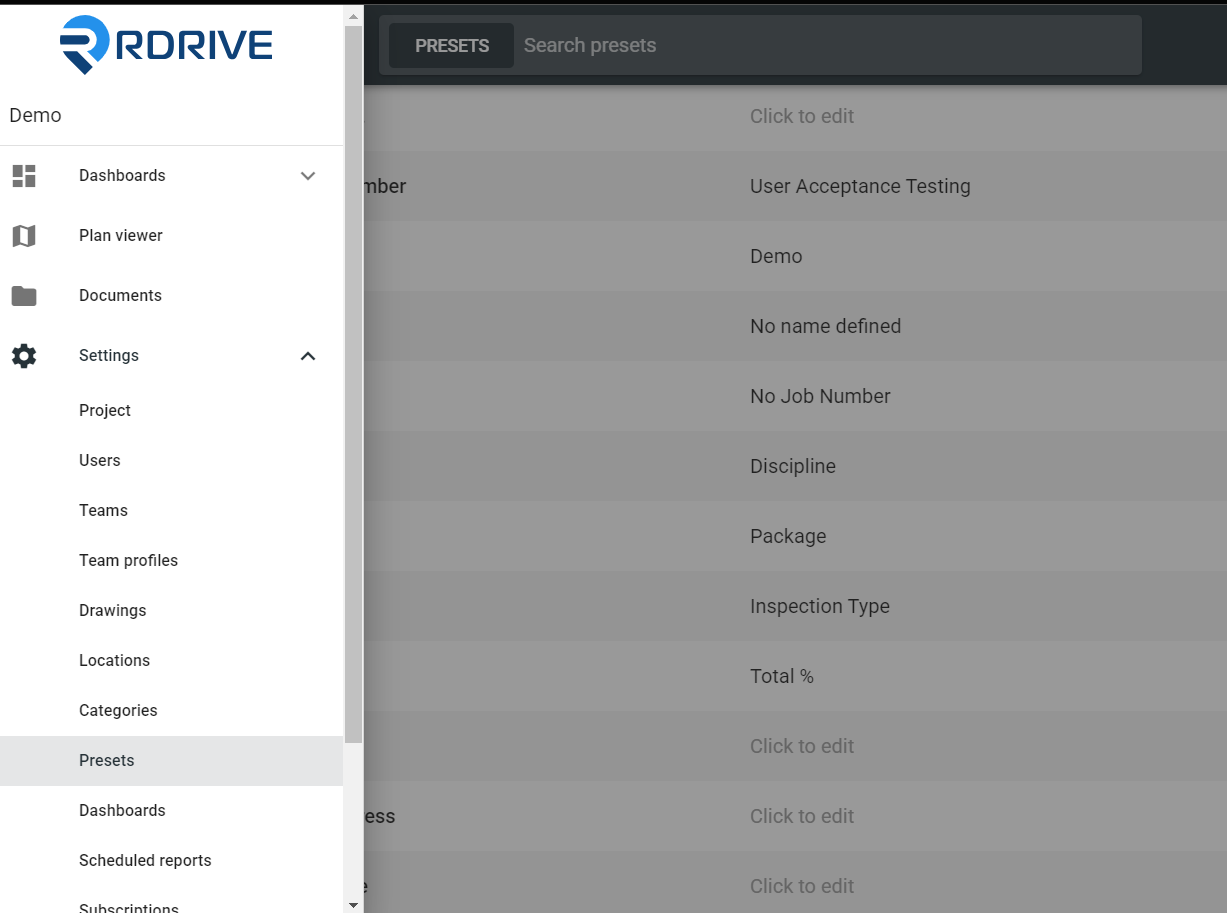
✅ Step 2: Selecting the Text Presets
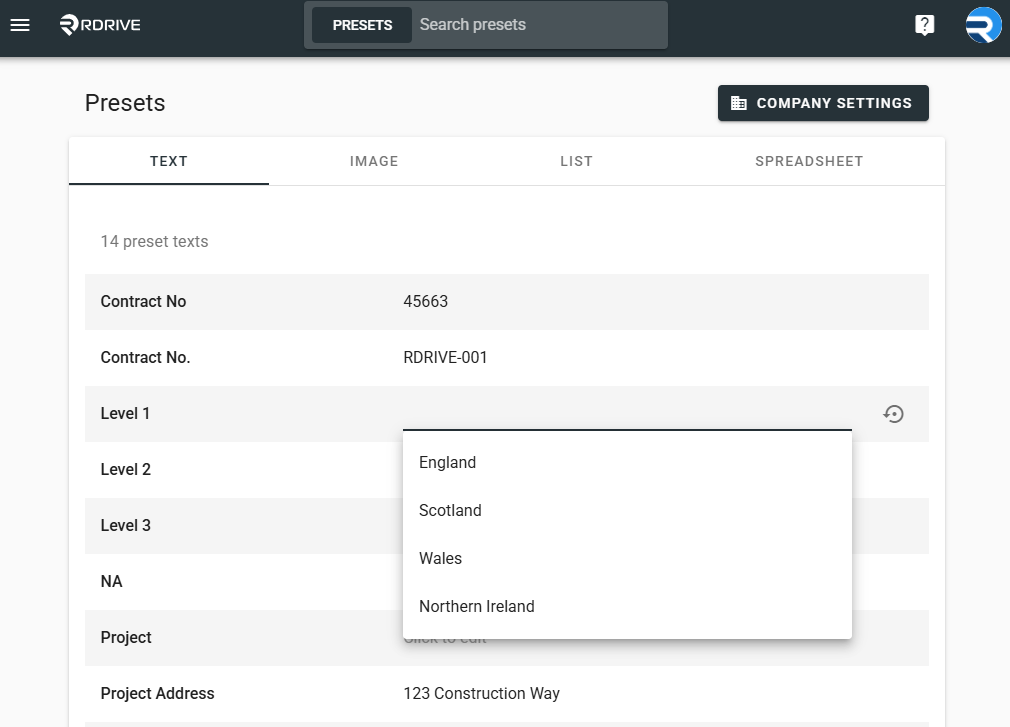
From the “Text” tab from the top menu, navigate to “Level 1”. Clicking into the “Click to edit” will display the dropdown menu for this list, make your selection, and this will be added to the project.
Repeat this process for Levels 2 and 3 and link them in the same way. Clicking into the “Click to edit” Field, you can define the list required from the dropdown menu.
✅ Step 3: Adding the Project Start and End Date
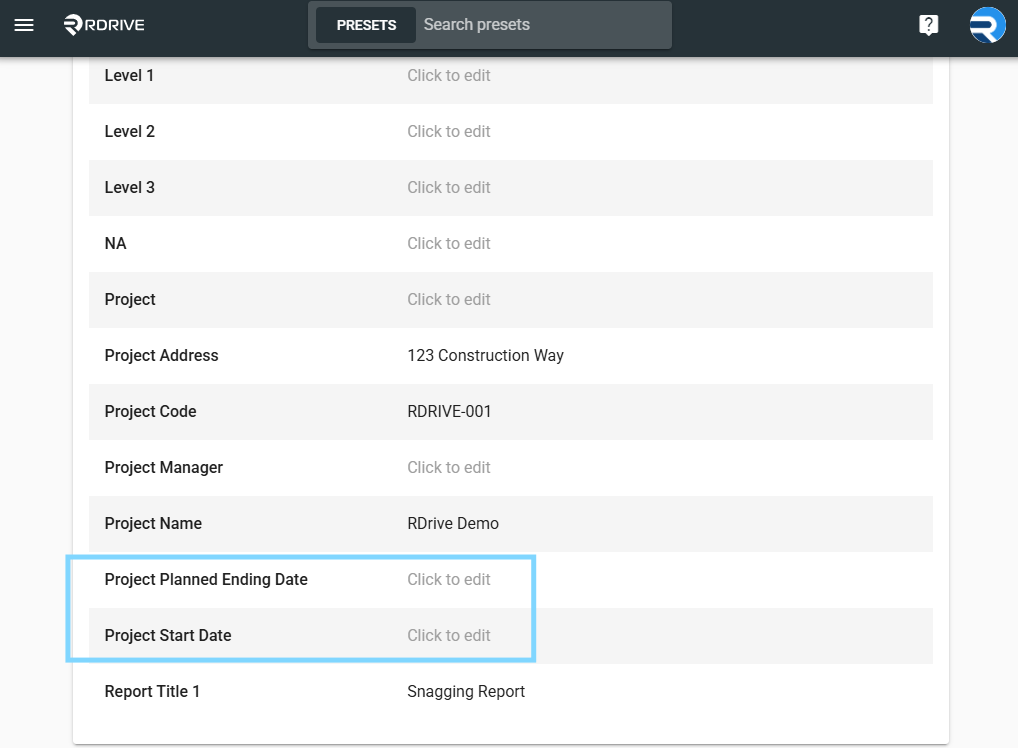
From the Preset page, under the “Text” tab, you can enter the project start and end dates. Adding this information is crucial to ensure the dashboard pulls the information through correctly.
Clicking into the text field, enter the start and end dates for your project.
Date format dd/mm/yyyy (30/01/2025)
FAQs & Troubleshooting
Q: Why can’t I see the settings or Presets?
A: You likely don’t have access to the Project Administrator team. Please contact your Account Manager to request access or to have your role updated.
Q: Can I apply different grouping levels for different projects?
A: Yes. The dashboard allows you to configure Level 1–3 text presets per project. These levels can represent anything (e.g., Region, Sector, Project Manager) and are fully flexible. .
Q: I’ve completed the presets, but users say they can’t see the dashboard. Why?
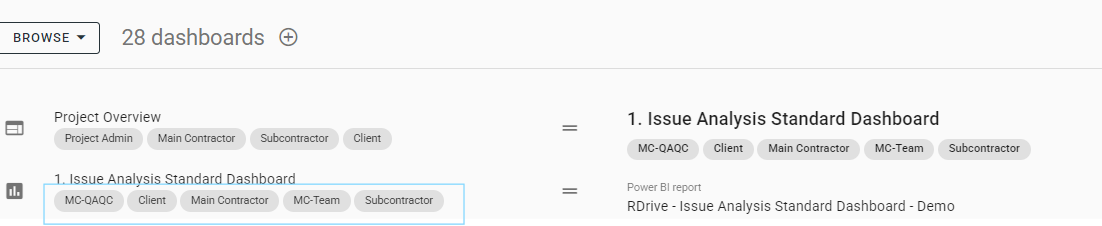
A: This could be an issue with dashboard tags. If the required tags aren’t correctly set, the dashboard won’t appear to some users. To check:
Go to Settings → Dashboard
Select the relevant dashboard
Ensure the appropriate tags are applied (see example screenshot)
Was this article helpful?
That’s Great!
Thank you for your feedback
Sorry! We couldn't be helpful
Thank you for your feedback
Feedback sent
We appreciate your effort and will try to fix the article