 |

Overview
How to add and download projects to your mobile application
- Purpose: How to download and install a project using the RDrive mobile app.
- Who It’s For: All users with access to RDrive mobile projects.
Prerequisites: Activate RDrive account, Internet access, project access
Step-by-Step Instructions
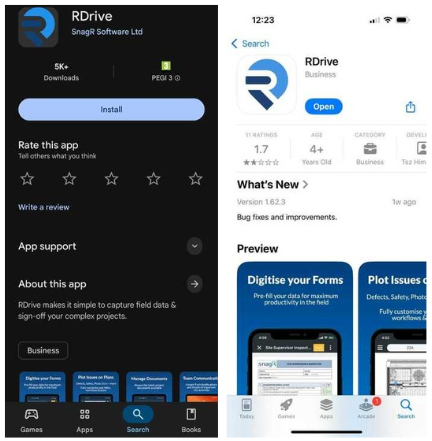
✅ Step 1: Install the RDrive App
Go to the App Store (iOS) or Play Store (Android)
Search for and install the “RDrive” app
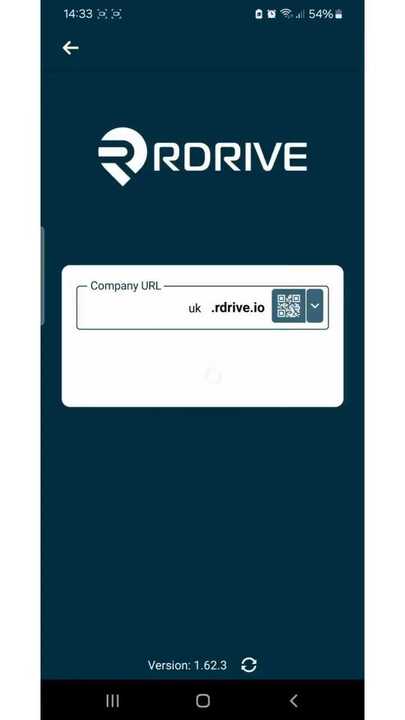
✅ Step 2: Logging Into the App
Open the app and enter your Company URL
This is the first part of your web URL
Example: If your full URL is https://snagr.rdrive.io/123, your Company URL is “snagr”
Tap NEXT
Enter your registered email address and password and select NEXT again
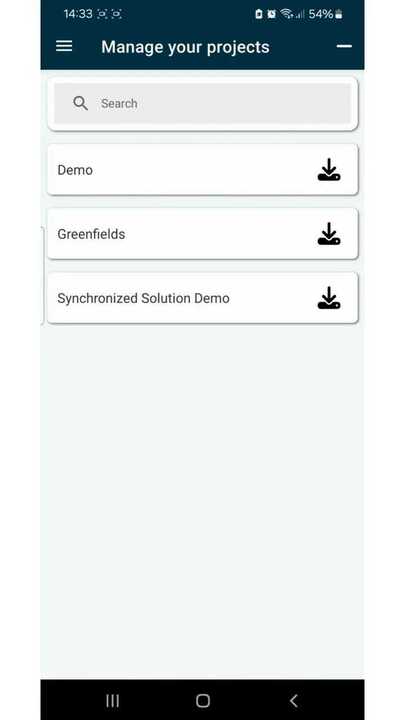
✅ Step 3: Downloading Your Project
After logging in, you will see a list of all available projects
Tap the Download button next to the project you wish to download
3. Select the download mode - we suggest working "Offline" as default
4. Wait for the download to complete
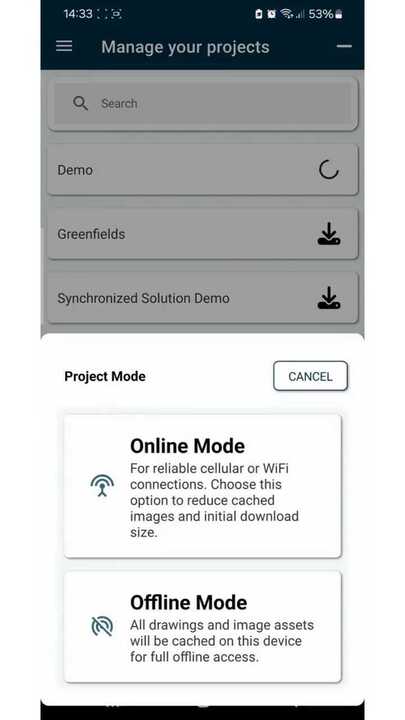
You now have offline access to the project!
✅ Step 4: Using the QR Code (Optional)
Scan the QR code from your welcome email
This will auto-fill your project’s URL
Enter your username and password to log in
FAQs & Troubleshooting
Q: What if I don't know my Company URL?
A: It’s the prefix of the full project URL. Ask your administrator if unsure.
Q: What if the QR code doesn’t work?
A: Double-check your camera permissions and try again. You can also manually enter the URL.
Q: What’s the difference between download modes?
A: See the detailed guide here: Difference Between Download Modes
Was this article helpful?
That’s Great!
Thank you for your feedback
Sorry! We couldn't be helpful
Thank you for your feedback
Feedback sent
We appreciate your effort and will try to fix the article