 |
Overview
A brief introduction explaining the purpose of this guide.
- Purpose: To help users select the most suitable download mode when adding or syncing a project in the RDrive app
- Who It’s For: All users downloading or accessing RDrive projects via mobile devices
Prerequisites: Access to a project, internet access
✅ Step-by-Step Guide – Choosing a Download Mode
When first downloading a project in the RDrive App, you’ll be prompted to select a Download Mode. The choice affects how project images (like drawings, form templates, and photo records) are handled on your device.
✅ Option 1: Offline Mode (Default)
Best for: Unreliable or limited internet connections (mobile data or Wi-Fi).
What It Does:
Downloads all images and drawings to your device during sync.
Allows full offline access, even without any internet.
Pros:
✔️ Work completely offline after initial sync
✔️ Faster image loading in the app (locally stored)
Cons:
❌ Longer sync time during setup
❌ Higher device storage usage
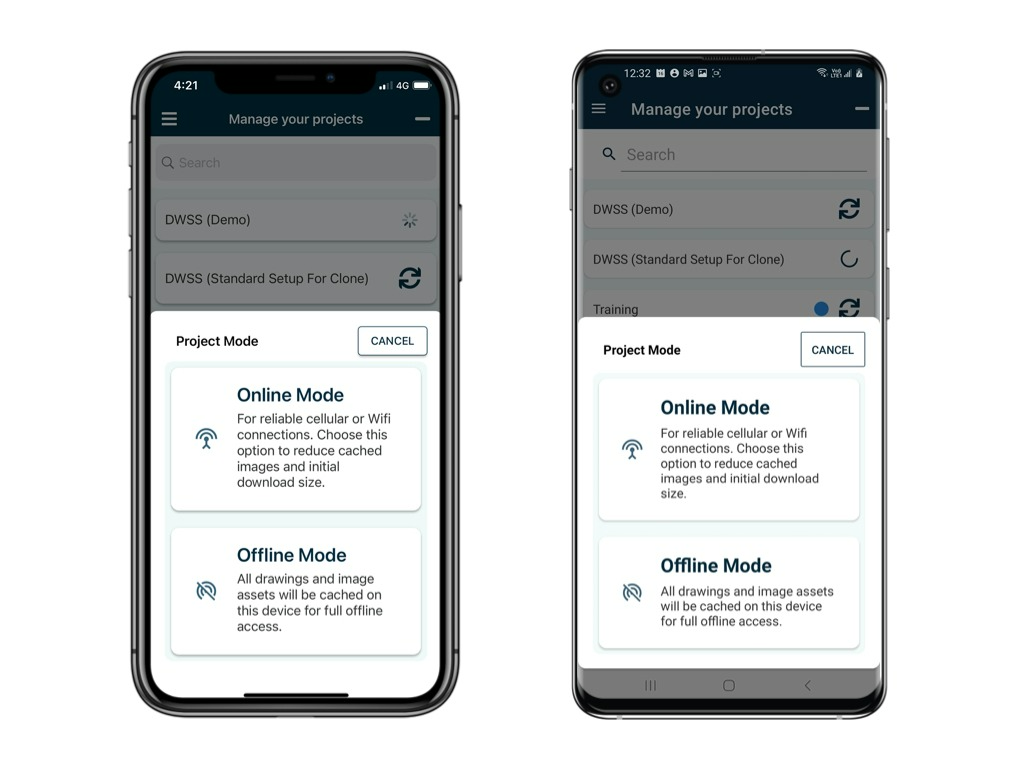
✅ Option 2: Online Mode
Best for: Strong and consistent internet access
What It Does:
Does not download images during sync.
Images load on-demand only when accessed (e.g., when opening a drawing or form).
Pros:
✔️ Faster initial sync
✔️ Saves device storage space
Cons:
❌ Requires a strong internet connection while working
❌ May cause delays when accessing images if connectivity is weak
✅ Sub-Modes Within Online Mode
If you select Online Mode, you’ll get two sub-options to further customise how images are handled:
Download Project Assets (Hybrid Mode)
Best for: Slow or intermittent connections, partial offline access
What It Does:
Downloads base drawings and form templates during sync
Issue photos and historical image data are loaded only when needed
Pros:
✔️ Navigate drawings and fill forms offline
✔️ Reduces image sync load while maintaining usability
Cons:
❌ Issue photos will require internet to load
❌ Not all features available offline
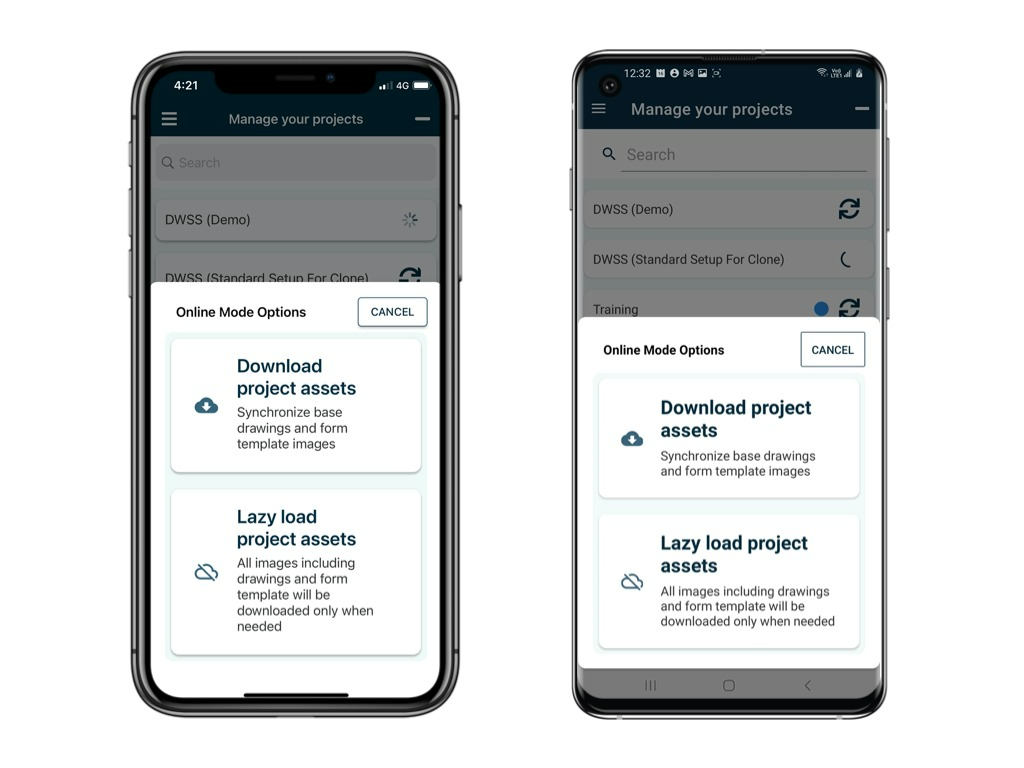
Lazy Load Project Assets
Best for: Reliable, fast connection (Wi-Fi or 4G/5G)
What It Does:
All images, including drawings, forms, and issues, are loaded only when accessed
Pros:
✔️ Minimal sync time and storage use
✔️ Ideal for fast-paced users with strong connectivity
Cons:
❌ No offline access to images
❌ Interruptions in internet may prevent users from loading necessary visuals or placing pins on drawings
Best Practices & Tips
Choose Offline Mode if you're heading to a site with no guaranteed connectivity
Use Download Project Assets if you need fast access to drawings but can sync issue images later
Opt for Lazy Load only if your environment offers consistently fast, uninterrupted internet
Summary Table
| Mode | Ideal For | Image Handling | Internet Required During Use | Storage Impact |
|---|---|---|---|---|
| Offline Mode | No/poor connection | All images pre-downloaded | ❌ No | High |
| Download Project Assets | Limited internet | Drawings/forms downloaded; others lazy-loaded | ⚠️ Partial | Moderate |
| Lazy Load Project Assets | Strong connection | All images lazy-loaded on access | ✅ Yes | Low |
By selecting the appropriate download mode, you ensure smooth performance of the RDrive App tailored to your site conditions and workflow.
Make the right choice for your environment to maximize efficiency and avoid delays in the field.
FAQs & Troubleshooting
Q: Do I need to install the RDrive Mobile App if I already use the Web version?
A: Yes, if you work in the field or in areas with limited connectivity. The Mobile App offers offline functionality, geolocation tagging, QR/NFC scanning, and a touch-optimised interface—features not available in the Web version.
Q: Does the Mobile App work without internet?
A: Yes. You can collect data, take photos, and complete records offline. Just make sure to sync before going offline to download the latest project data, and sync again once you reconnect to upload your updates.
Q: Will my data be available in both the Web and App versions?
A: Yes. As long as you sync regularly, your data will be shared across both versions, ensuring all team members have the latest information.
Q: Is there any difference in data accuracy between the Web and App?
A: No, both use the same central database. The main difference is that the Web version updates instantly (real-time), while the Mobile App requires manual syncing to update.
Q: Can I scan QR codes or NFC tags using the Web version?
A: No, QR/NFC scanning is only available in the Mobile App.
Q: Can I run advanced data analysis on the Mobile App?
A: The Mobile App focuses on data collection and field operations. For deeper analysis, dashboards, and reporting, use the Web version.
Q: Which project download mode should I choose in the RDrive App?
A:
Offline Mode: Choose this if you expect no or poor internet. All images are pre-downloaded for full offline use, but it takes more storage and initial sync time.
Download Project Assets: Good for limited internet—drawings and forms are downloaded, while issue photos load only when needed.
Lazy Load Project Assets: Best for strong, stable internet—nothing is pre-downloaded, so syncs are fast and storage use is low, but no offline image access is available.
Was this article helpful?
That’s Great!
Thank you for your feedback
Sorry! We couldn't be helpful
Thank you for your feedback
Feedback sent
We appreciate your effort and will try to fix the article