 |
Overview
The RDrive Mobile App is designed to give site teams quick access to the information and actions they need while working on a project.
Depending on your project setup, team and permissions, you may use the app to:
- View project drawings and locations
- Raise and manage Issues
- Complete Processes and digital forms
- View work assigned to your team
- Capture photographs and site evidence
- Work offline and synchronise your changes when connectivity is available
This guide introduces the main areas of the app and explains the terminology you'll see as you navigate a project.
- Purpose: Understand the RDrive Mobile App layout and how the different areas of a project fit together.
- Who It’s For: Anyone using RDrive on a mobile device or tablet.
TABLE OF CONTENTS
- The Project Landing Page
- Navigating the Bottom Menu
- Understanding Assigned Items
- Understanding Categories & Subcategories
- View Plans – Understanding Drawings
- Understanding Issues & Processes
- FAQs & Troubleshooting
The Project Landing Page
Once you open a downloaded project, the Project Landing Page provides your starting point for navigating the project.
The landing page is divided into several areas.
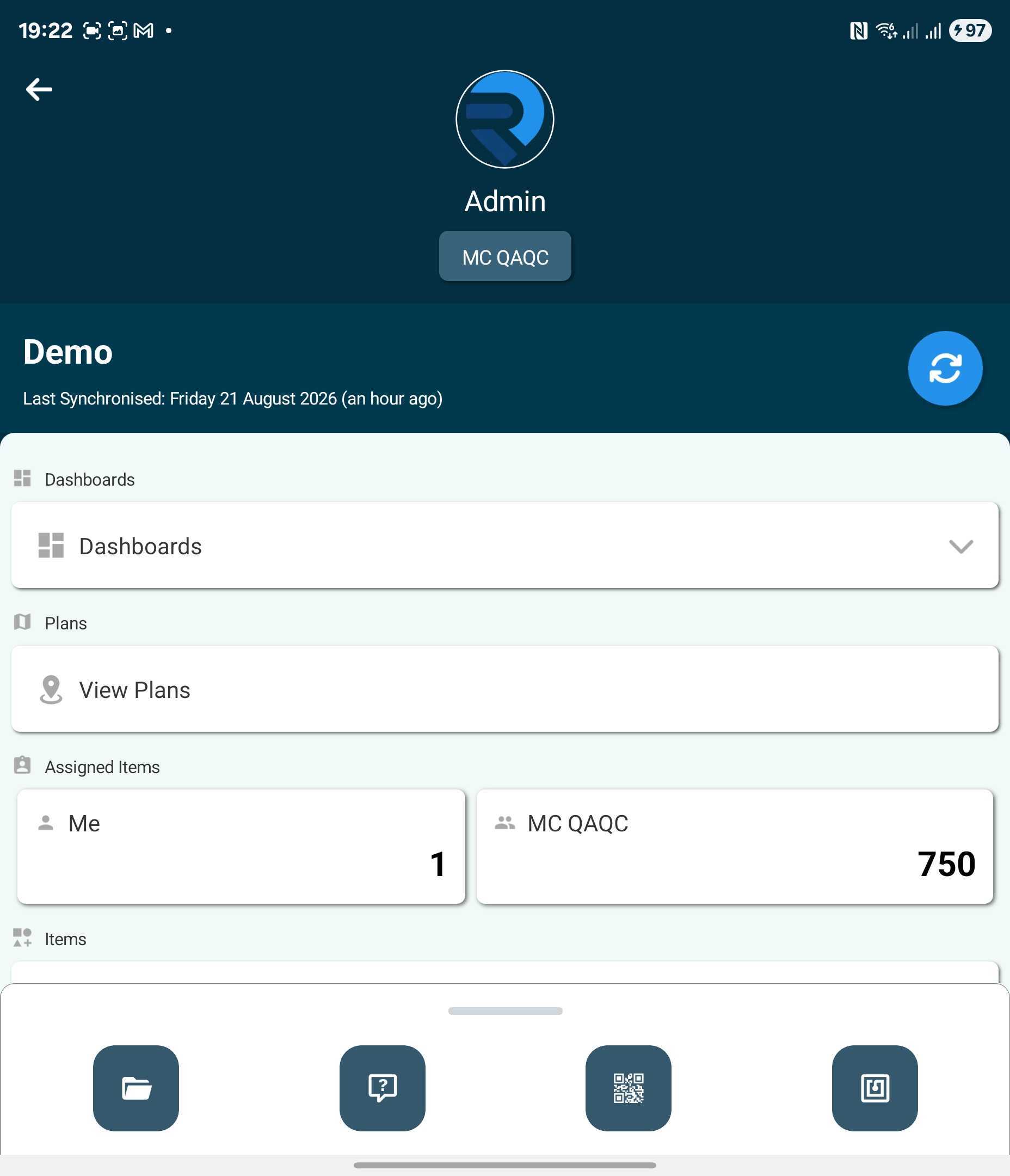
| Area | What it does |
|---|---|
| Synchronise | Sends your changes to RDrive and downloads the latest project information. |
| Dashboards | Provides access to dashboards made available to you on the project. |
| View Plans | Opens the project's drawings and locations. |
| Assigned Items | Shows work currently assigned to your team. |
| Items | Contains the Issues, Processes and other templates available to you, organised into categories and subcategories. |
| Bottom Menu | Provides quick access to project management, help, QR scanning and app settings. |
The options you see are determined by your project configuration, team and permissions.
Navigating the Bottom Menu
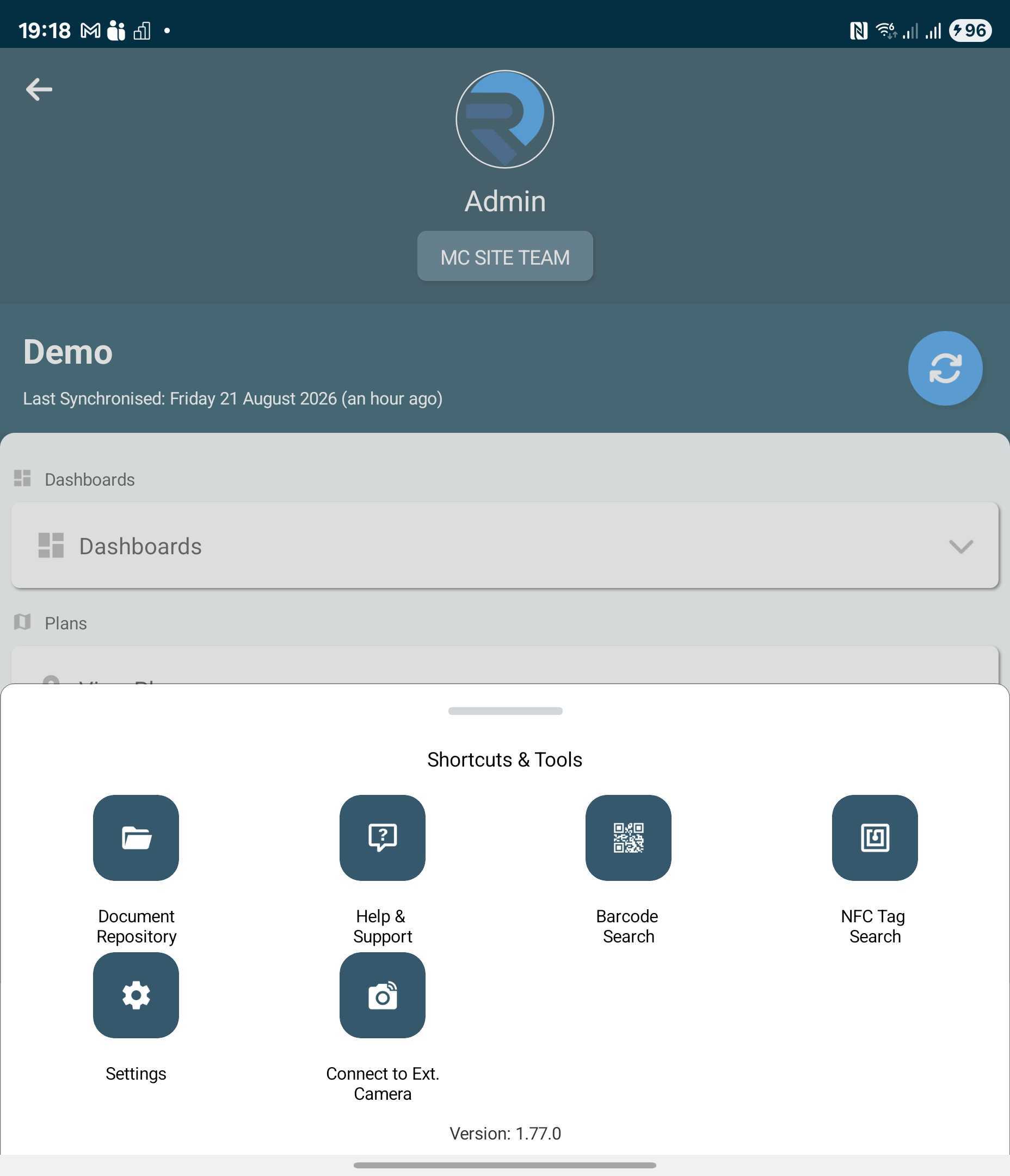
At the bottom of the landing page is the app's main navigation bar.
This remains readily available while you're using the app and provides access to important app-level functions.
Understanding Assigned Items One of the most useful areas of the landing page is Assigned Items.
Assigned Items gives you a quick view of work that has been assigned to your team.
The number displayed against your team is the number of assigned records available to you. In the example above, Snagging LTD has 60 assigned items.
Tap your team name to see a breakdown of those items by record type. You can then expand the relevant type and open individual records.
If another user can see an assigned item but you cannot, check whether the item has been assigned to a different team. Synchronising the project can also bring down newly assigned work.
Learn more: What's Assigned to my Team?
Understanding Categories & Subcategories
Under Items, you may see headings such as:
Submittals
Quality
HSE
Permits
These are Categories.
Categories are used to organise the templates available within a project and make the app easier to navigate.
Your organisation can configure categories around:
- Type of work
- Project area
- Participants
- Business process
- Use case
For example:
Quality
→ Inspections
→ Defects
→ Checklists
or:
HSE
→ Site Inspections
→ Observations
→ Permits
What is a Subcategory?
A Subcategory sits underneath a Category and provides another level of organisation for your templates.
Every template belongs to a subcategory.
A useful way to think about the structure is:
Category → Subcategory → Template
For example:
Quality → Defects → Main Contractor Defect
The exact structure will depend on how your organisation has configured RDrive.
View Plans – Understanding Drawings
Select View Plans to access the drawings available within the project.
Drawings provide the visual structure for navigating around the project.
Depending on the project, you might start with:
Site Plan → Building → Floor → Detailed Drawing
Rather than searching through long lists of records, drawings allow you to navigate to the physical area where the work is taking place.
What is a Drilldown Button?
A Drilldown is an interactive button placed on a drawing that links you directly to another drawing.
For example, a project may have:
Site Layout
↓
Building A
↓
Level 01
↓
Apartment 01
Selecting each Drilldown takes you progressively further into the project.
Think of Drilldowns as shortcuts between related drawings.
They are particularly useful on large projects because you don't need to continually return to a drawing list to find the next plan.
Understanding Locations
Once you've navigated to a drawing, you'll usually see Location Pins.
Locations tell RDrive where on the project an Issue or Process belongs.
For example, locations could represent:
- Apartment 01
- Room 101
- Corridor
- Stair Core
- Plant Room
- External Area
When you raise an Issue or complete a Process against a location, that location becomes part of the record.
This means reports can identify that an Issue relates to Room 101, for example, without somebody having to open the drawing and find its pin.
Locations are normally configured across the project's drawings during project setup.
Understanding Issues & Processes
You'll commonly work with two types of records in RDrive.
Issues
Issues are used to record something that requires attention or action.
Depending on your organisation, these might be called:
- Defects
- Snags
- Observations
- Client Issues
- HSE Issues
An Issue can contain information such as its location, description, photographs, responsible team, status and other project-specific information.
Processes
Processes are structured workflows or digital forms used to capture and manage information.
Examples might include:
- Quality inspections
- Checklists
- Permits
- Test records
- Commissioning forms
- Submittals
The exact Issues and Processes available to you depend on your project setup and permissions.
Learn more: Understanding Items in RDrive
FAQs & Troubleshooting
Q: Why does my app look different from the screenshots?
A: RDrive is configurable. The Categories, Subcategories, Issues, Processes and other options available depend on your organisation, project, team and permissions.
Q:Why can't I see an Issue or Process?
A: You may not have permission to view that template or record, or it may belong to another team. Synchronise your project first to make sure you have the latest information.
Q: What does the number under Assigned Items mean?
A: It represents the work currently assigned to your team. Select your team to see a breakdown of those records .
Q: Why can't I see a Location Pin?
A: The location may not have been added to that drawing, please contact your Project Administrator
Q: Can I use RDrive without an internet connection?
A:The mobile app is designed to support site working where connectivity may be limited. Make sure the project and required information have been downloaded beforehand, and synchronise when connectivity is available.
Q: Why isn't my newly assigned work showing?
A: Synchronise the project to download the latest changes. If it still isn't visible, check that the record has been assigned to your team.
Was this article helpful?
That’s Great!
Thank you for your feedback
Sorry! We couldn't be helpful
Thank you for your feedback
Feedback sent
We appreciate your effort and will try to fix the article