 |
Overview
Keep your syncs consistent—your project depends on it.
- Purpose: To ensure your RDrive mobile app stays up-to date with the server and avoids data loss
- Who It’s For: All mobile app users working on-site or offline
Prerequisites: Installed RDrive app and an active project, internet connection
TABLE OF CONTENTS
Step-by-Step Instructions
✅ Step 1: Understanding Synchronisation
What is Syncing?
Synchronisation connects your mobile device with the RDrive server via the internet. This ensures all data—both newly created and updated—is aligned across all users and platforms.
Why is it Important?
- Keeps everyone working with the most current information
- Prevents data conflicts or overwrites
- Ensures your work is backed up and not lost
✅ Step 2: Sync Before Going On-Site
Ensure you’re connected to a stable network (Wi-Fi or mobile data).
Open the RDrive App.
From the main menu or project screen, locate and tap the “Sync” button, changes needing to be send up will mean the sync button will appear blue.
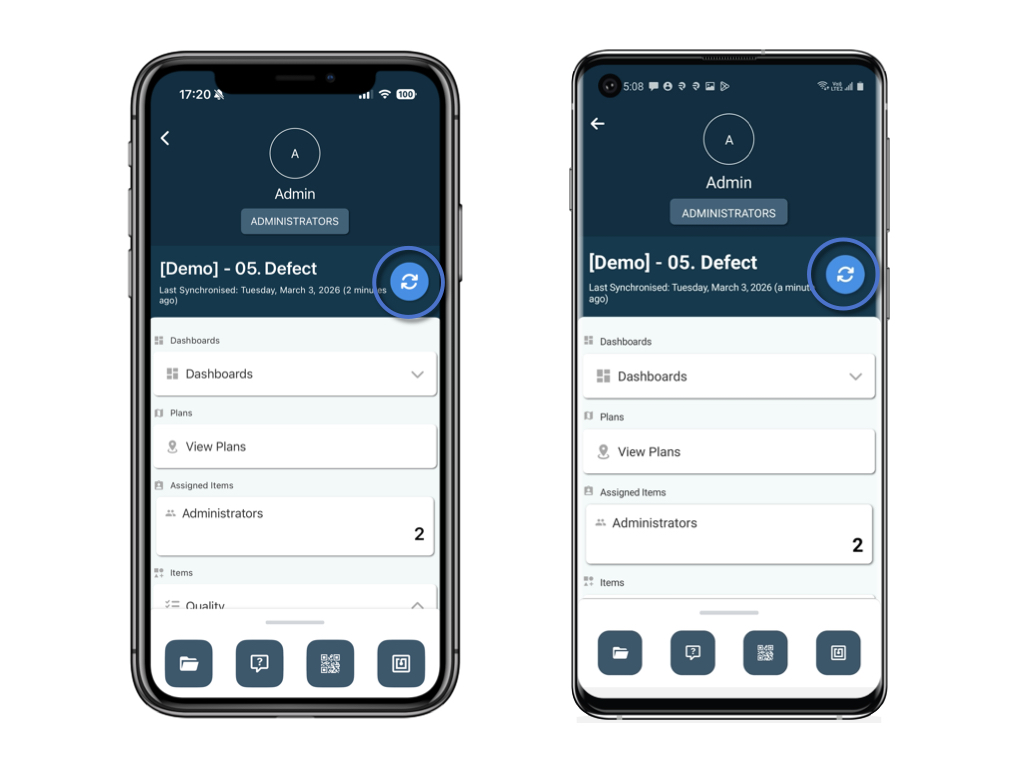
Wait until the synchronisation completes. You’ll receive a confirmation message once done.
This step downloads the latest project data and records to your device, so you're ready to work offline.
✅ Step 3: Work Offline in the Field
You can now create records, defects, or forms even without internet access.
All your offline entries are stored locally on your device.
Continue capturing data as normal—syncing is not required during this step.
✅ Step 4: Sync After Completing Work
Reconnect your device to the internet.
Return to the main screen or project menu in the RDrive App.
Tap the “Sync” button again.
Allow the app to upload all changes and download any updates from others.
This ensures all your entries are backed up and accessible to other team members.
Best Practices & Tips
Always Sync Twice a Day
Before going to the site and After finishing field work.
Check Sync Status
Look for “Last Synced” timestamps or success messages to confirm completion.
Avoid Data Conflicts
Don’t create duplicate records before syncing existing data from the server.
FAQs & Troubleshooting
Q: What happens if I don’t sync?
A: Your data remains stored only on your device. If the device is lost or data is corrupted, un-synced records may be permanently lost.
Q: Can I sync using mobile data?
A: Yes. However, for large syncs (photos, attachments), Wi-Fi is recommended to save bandwidth.
Q: How will I know if sync failed?
A: The app will display an error message or syncing status bar. Retry when a stable connection is available.
By regularly syncing the RDrive App, you ensure smooth team collaboration, accurate project data, and robust protection against data loss.
Was this article helpful?
That’s Great!
Thank you for your feedback
Sorry! We couldn't be helpful
Thank you for your feedback
Feedback sent
We appreciate your effort and will try to fix the article