 |

Overview
The Document Reference provides every controlled document with a unique, standardised identifier.
Rather than entering the reference manually, RDrive automatically builds it using the codes from the selected metadata fields. This ensures documents follow your organisation's naming convention and remain consistent across the project.
- Purpose: This guide explains how to create a Document Reference when completing a Controlled Document form.
- Who It’s For: Project teams, document controllers, engineers, designers and any users responsible for creating or uploading controlled documents.
Prerequisites: Permisions to create a process
Step-by-Step Instructions
✅ Step 1: Create a process
The Document Reference field is displayed at the top of the form and is automatically generated as document information is completed.
Example: 12345-STL-Z1-5-CA-C-0012
✅ Step 2: Complete the Document Coding Fields
Complete the fields used to build the Document Reference.
| Field | Description |
|---|---|
| Originator Code | Select the organisation creating the document. |
| Functional Breakdown | Select the appropriate zone, work package or functional area. |
| Spatial Breakdown | Select the level, floor or location. |
| Document Type | Select the type of document (e.g. Drawing, Calculation, Specification, Report). |
| Role | Select the discipline responsible for the document (e.g. Civil, Structural, Architectural). |
| Number | Enter the document's unique sequential number. |
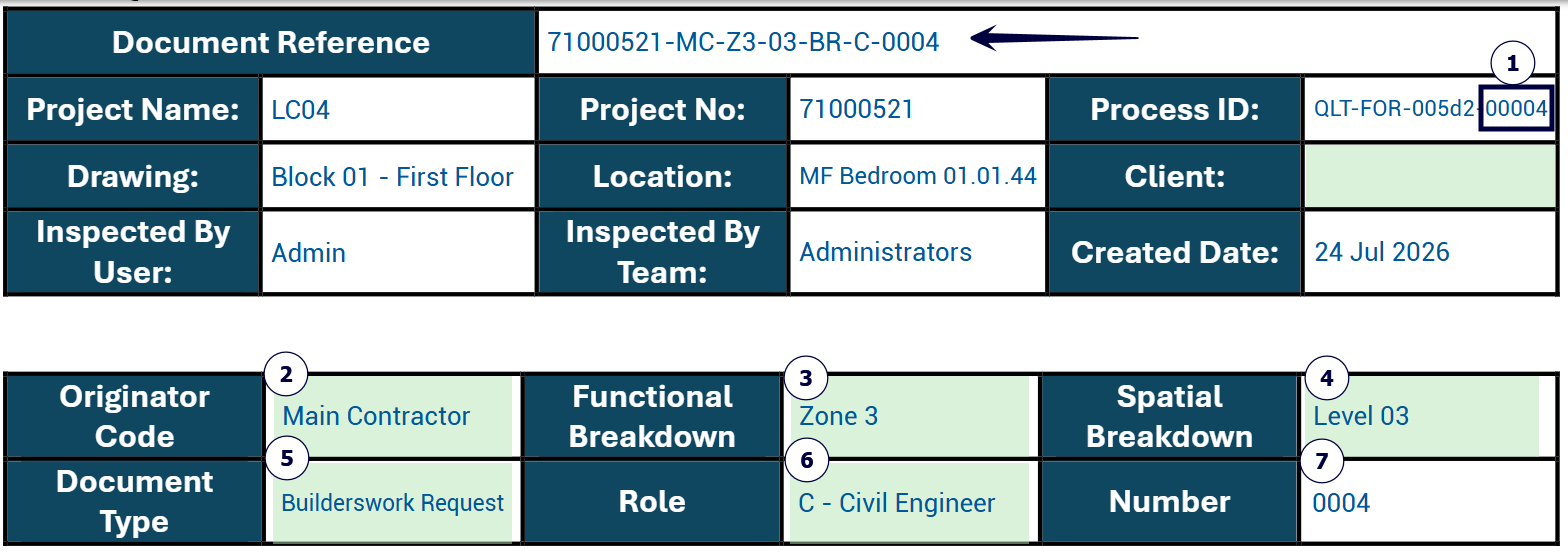
✅ Step 3: Review the Generate Document Reference
As each field is completed, RDrive automatically assembles the Document Reference using the configured document codes.
The format is: Project-Originator-Functional Breakdown-Spatial Breakdown-Document Type-Role-Number
For example:
| Selection | Code |
|---|---|
| Project No | 12345 |
| Originator | MC |
| Functional Breakdown | Z1 |
| Spatial Breakdown | 5 |
| Document Type | CA |
| Role | C |
| ID Number | 0012 |
Generate Document Reference: 12345-MC-Z1-5-CA-C-0012
Note: The system uses the configured codes, not the display names shown in the dropdown lists.
FAQs & Troubleshooting
Q: Can I type my own Document Reference?
A: No. The Document Reference is generated automatically from the selected document metadata to ensure consistency.
Q: Why doesn't my Document Reference look correct?
A: Check that each dropdown selection is correct. The generated reference uses the configured document codes rather than the display names. [Provide troubleshooting steps or escalation options.
Q: Why is part of the Document Reference missing?
A: One or more required fields have not been completed. Complete all mandatory coding fields before saving.
Was this article helpful?
That’s Great!
Thank you for your feedback
Sorry! We couldn't be helpful
Thank you for your feedback
Feedback sent
We appreciate your effort and will try to fix the article