 |
Overview
Items are at the heart of how information and activity are recorded, managed and tracked in RDrive.
An Item can be used to record something that requires action, maintain a record of an asset, or manage a structured activity such as an inspection or permit.
This guide explains the different types of Items in RDrive, how they can be positioned within your project, and how workflows and statuses are used to track progress.
- Purpose: Understand the different types of Items in RDrive and how they are used.
- Who It’s For: Anyone using RDrive to raise, view, update or complete project Items.
Prerequisites: Access to an RDrive project. The Items available to you will depend on your project configuration, Team and permissions.
TABLE OF CONTENTS
- Overview
- What is an Item?
- Where are Items positioned?
- Understanding Item Pins
- Understanding Workflows
- Finding and Managing Your Items
- What would you like to do next?
- FAQs & Troubleshooting
What is an Item?
Item is the general term used in RDrive for information or activity created and managed against your project.
There are two main types of Item:
| Item Type | Common Uses |
|---|---|
| Issue | Defects, snags, observations, actions and asset records |
| Process | Installations, inspections, permits and other structured activities |
Although Issues and Processes work differently, both can be associated with project Locations and managed throughout the life of the project.
Issues
An Issue is a flexible Item that can be used either to manage an action or maintain a record.
Issues as Actions
Issues are commonly used when something needs to be recorded, assigned, actioned and progressed through a workflow.
Examples include:
- Defects
- Snags
- Observations
- Client issues
- Remedial actions
For example, a defect could be raised against a subcontractor, progressed through the required statuses and eventually closed once the work has been completed and accepted.
Issues as Records
Not every Issue needs to represent a problem or action.
Issues can also be configured to maintain records of project assets or information, such as:
- Fire doors
- Sprinklers
- Equipment
- Installed assets
This allows information, photographs, documents and other relevant details to be maintained against the Item.
Good to know: The way Issues are named and used will depend on how your RDrive project has been configured.
Processes
A Process is used for more structured activities where information needs to be captured using one or more digital Forms.
Processes are commonly used for:
- Installations
- Inspections
- Quality checks
- Permits
- Testing
- Approvals
- Other controlled project activities
A Process can contain multiple Forms.
For example, an installation Process could contain Forms for different stages of the work.
Forms
Each Form can capture different information and can have its own workflow.
This means Form 1 could be completed while Form 2 is still awaiting action.
The Forms have the workflows — the Process itself does not.
Where are Items positioned?
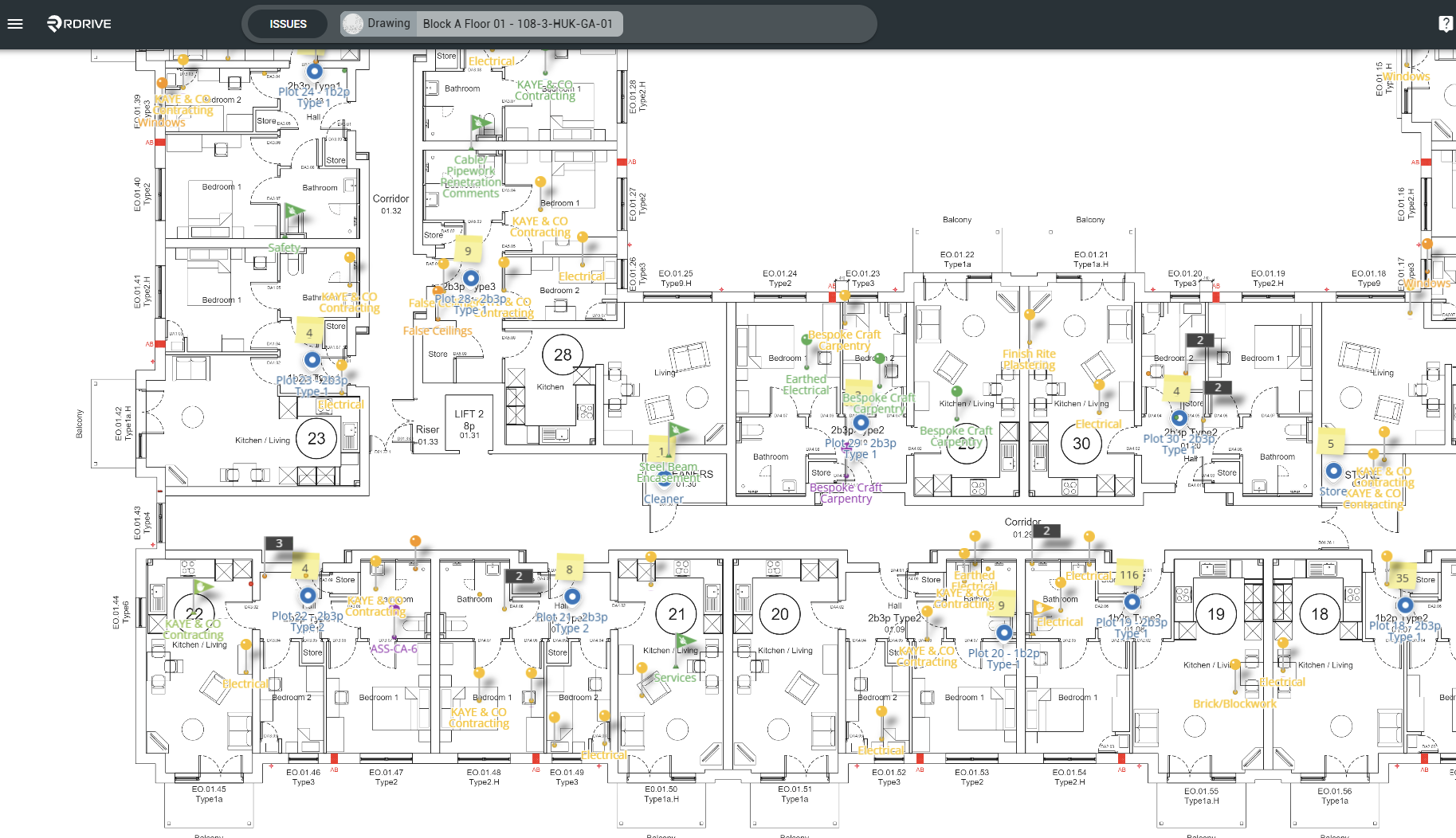
Issues and Processes can both be created in two ways:
Location-based
A Location-based Item is associated with a project Location but does not have a precise position on the drawing.
For example:
Building A → Level 01 → Room 101 → Fire Door 1
The Item is available against Room 101 without needing to identify an exact point on the drawing.
Custom Positioned
A Custom Positioned Item is placed at a specific X/Y coordinate on a drawing.
Custom Positioned Items appear as pins on the plan, allowing users to see exactly where the Issue or Process relates to.
For example, a defect could be pinned directly to the position of the affected wall, door or piece of equipment.
Understanding Item Pins
When an Item is Custom Positioned, its pin provides a quick visual indication of its current status.
The colour of the pin represents the current status of the Item.
This makes it easier to review a drawing and quickly understand where Items have been raised and their current progress.
Note: Status names, workflows and colours can vary depending on how your project has been configured.
Understanding Workflows
Workflows control how Items progress through the stages required by your project.
For an Issue, the Issue itself progresses through its configured workflow.
For a Process, the Process contains Forms and each Form can have its own workflow.
This is an important distinction.
| Issue | Process | |
| Can be Location-based | ✓ | ✓ |
| Can be Custom Positioned | ✓ | ✓ |
| Can appear as a pin | ✓ | ✓ |
| Contains Forms | - | ✓ |
| Has its own workflow | ✓ | - |
| Forms can have workflows | - | ✓ |
Finding and Managing Your Items
Once Items have been created, RDrive provides different ways to access and manage them depending on what you need to do.
You may, for example, want to:
- View Items assigned to you or your Team
- Find Items at a particular Location
- View Custom Positioned Items directly on a drawing
- Search and filter project Items
- Update an Item or Form
- Add comments or supporting information
- Progress an Issue or Form through its workflow
We'll cover these actions in the dedicated guides below.
Searching & Reporting from the List View
What would you like to do next?
Raise & Manage Issues
Learn how to raise Issues, find existing Issues, update information, add comments, manage statuses and work with Issues throughout their lifecycle.
Using the Website - tbc
Using the Mobile App
How to Raise an Issue, Defect, or Record
Create & Complete Processes
Learn how to create Processes, work with Forms, complete information and progress Forms through their workflows.
Using the Website
How to add a Process/Checklist Form from the Finder? (Category)
How to add a Process/Checklist from the Plan Viewer?
Using the Mobile App - tbc
FAQs & Troubleshooting
Q: What is the difference between an Item and an Issue?
A: Item is the overall term used in RDrive. An Issue is one type of Item. A Process is another type of Item.
Q: Does an Issue always mean there is a problem?
A: No. Although Issues are commonly used for defects, snags and observations, they can also be configured as records for assets or other project information.
Q: What is the difference between a Process and a Form?
A: A Process brings together one or more Forms relating to an activity.
The Forms capture the information and have their own workflows. The Process itself does not have a workflow.
Q: Does every Item appear as a pin on the drawing?
A: No. Only Custom Positioned Items appear at a specific X/Y position as a pin.
Location-based Items are associated with a Location without being positioned at a precise point on the drawing.
Q: What does the colour of an Item pin mean?
A: The pin colour represents the current status of the Custom Positioned Item.
The statuses and colours available can vary depending on your project's configuration.
Q: Why can another user see different Items or actions to me?
A: The Items and actions available to a user can depend on the project configuration, their Team, role and permissions.
Was this article helpful?
That’s Great!
Thank you for your feedback
Sorry! We couldn't be helpful
Thank you for your feedback
Feedback sent
We appreciate your effort and will try to fix the article