Dit artikel is niet beschikbaar in het Dutch, weergeven in het English
 |
Overview
A brief introduction explaining the purpose of this guide.
- Purpose: How to see work assigned to my team
- Who It’s For: Users
Prerequisites: RDrive access, Items assigned to your team
✅ Step 1: Accessing my Assigned Items
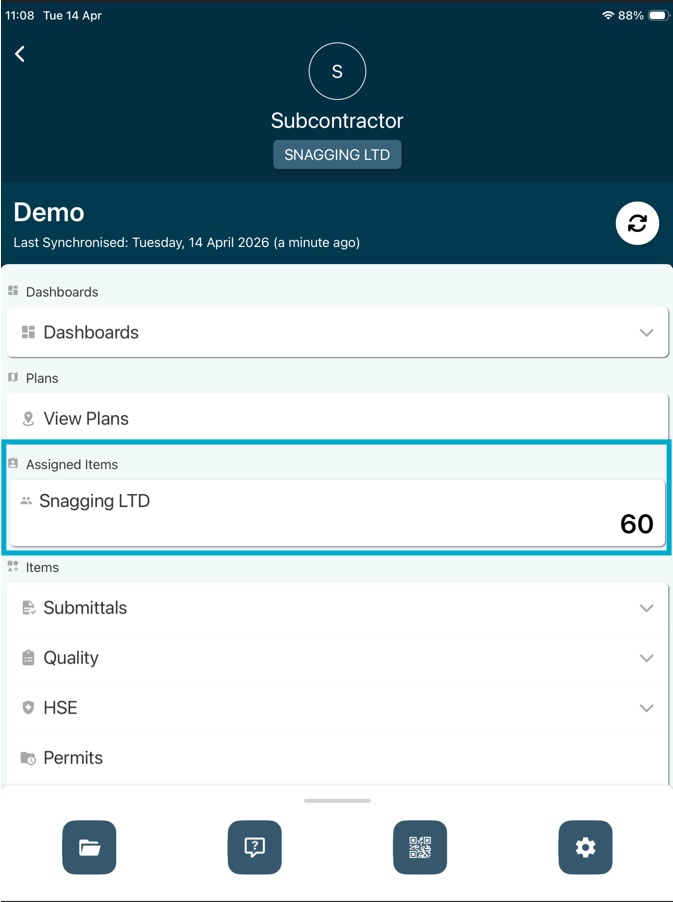
- From the main menu screen we should see the option for "Assigned Items" tab with a number of items assigned to your team. Click your team name under "Assigned Items" to open this.
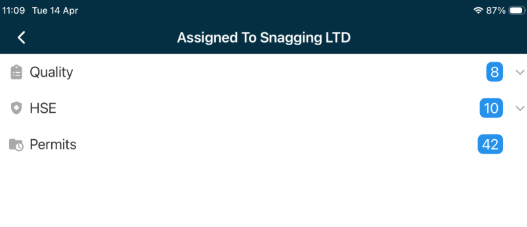
- This will then show the item/record types and the amounts of each at the end, clicking this will then expand these items to view.
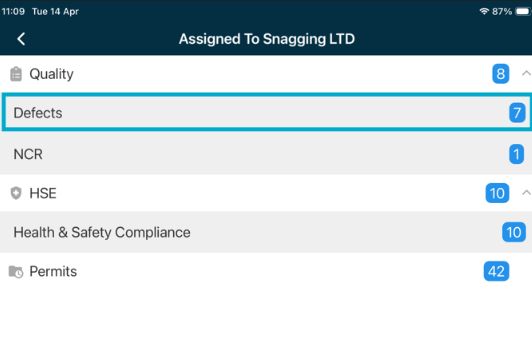
- Expand the item type required then click into this, we will select "Defects" in this example.
FAQs & Troubleshooting
Q: Why can't I seen an item another user can?
A: This is typically down to items being assigned to another team you aren't working in, if this is for your team please sync and this should update the items assigned.
Q: Why can't I press "Save"?
A: This is usually due to a mandatory ("*") field not being completed, fill this field in and you should be able to continue.
Was this article helpful?
That’s Great!
Thank you for your feedback
Sorry! We couldn't be helpful
Thank you for your feedback
Feedback sent
We appreciate your effort and will try to fix the article